



Fastlearn10x

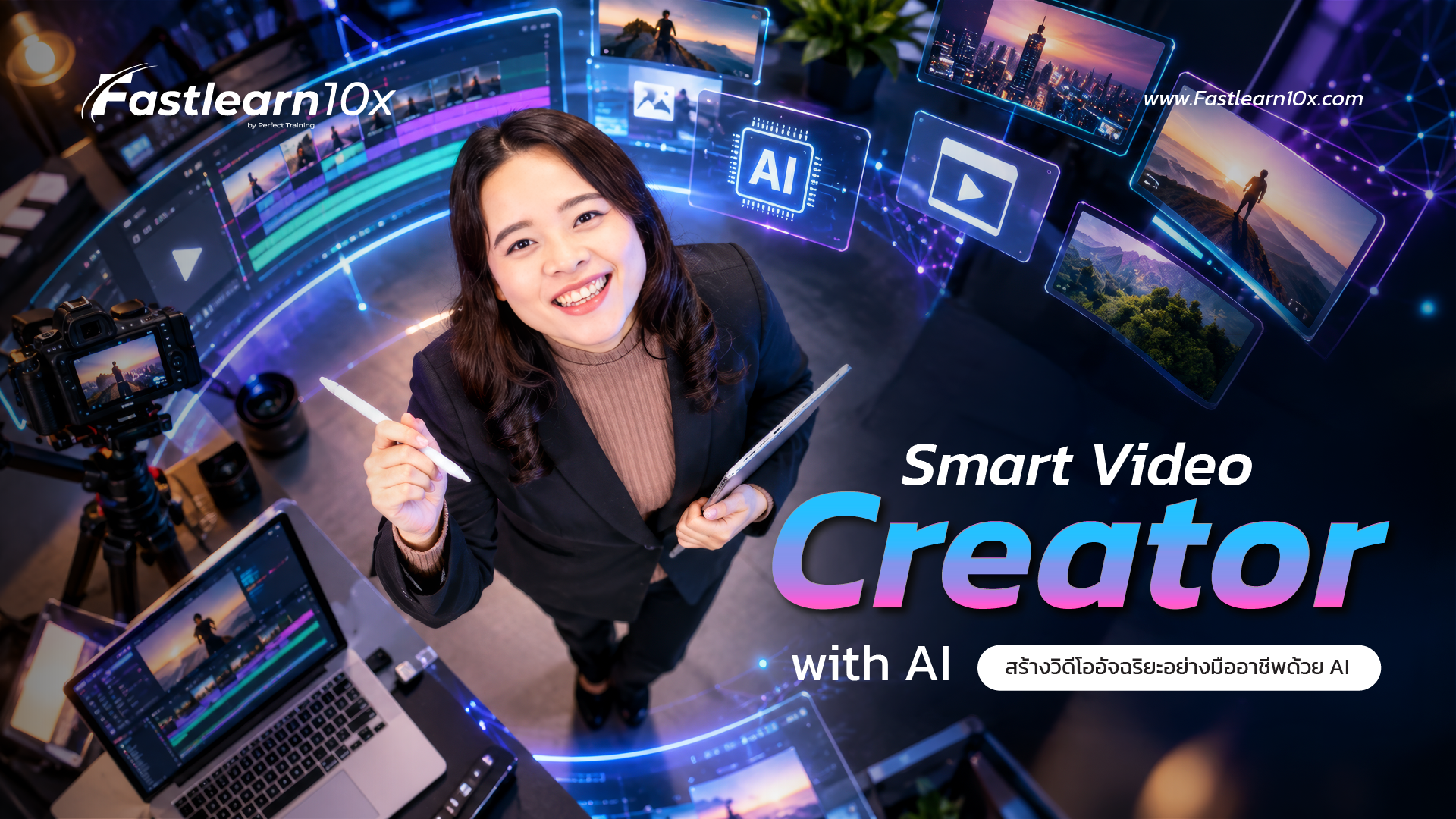
Smart Video Creator With AI: Create professional, intelligent videos with AI.

Simplify the video filming and editing process, allowing you to complete the entire process yourself through the collaboration of Google Flow AI and Canva AI. It learns everything from converting synopses to storyboards, maintaining consistent character appearances across all scenes, creating and sequencing video clips, to editing, voiceover, adding text, and exporting ready-to-use MP4 files.
Video preview
This course will be available to "learn" soon.
  • Description
  • Curriculum
  • FAQ
  • Reviews

Video production often stalls before filming even begins, requiring preparation of scripts, locations, actors, and hours of editing. Turning to AI for clip creation presents a common problem: character appearances change in every scene, making it impossible to create a cohesive narrative. This course… Smart Video Creator with AI: Create professional, intelligent videos with AI. Designed to solve these problems by combining two main tools: Google Flow AI and Canva AI Let's put it out as a workflow from start to finish.<!–>–>

In the first half (Lessons 1–5), you will learn how to use... Google Flow AI Transform a short, three-line idea into a ready-to-use storyboard using Storyboard Studio.<!–>–> Practice creating and locking in character appearance, hairstyles, outfits (Character Consistency), and backgrounds with the Autofill feature to ensure consistent and accurate shots every time.<!–>–><!–> The image frames are then converted into animated videos with camera angle adjustments (Zoom, Pan, Tilt), vertical and horizontal aspect ratios (16:9, 9:16), and the Extend feature can be used to extend the clip for further download and use.–><!–>–>

The second half (Lessons 6–10) involves editing and refining the clips to make them ready for publication. Canva AI Start by choosing a template, uploading your file, and cropping and deleting unwanted sections.<!–>–> This extends to audio management—including recording voiceovers ourselves, using AI for voiceovers, adding background music, and adjusting volume levels.<!–>–> Enhance your photos with Magic Studio, removing backgrounds, adding filters, placing text headings, and exporting video files to MP4 format at resolutions from 480p to 4K for social media or corporate presentations.


inhouse design course

What will this course be about, and what benefits will learners receive?
The Smart Video Creator with AI course teaches comprehensive video creation by integrating Google Flow AI (from storytelling and visualization to storyboarding, creation, and video editing) with Canva AI (for editing, retouching, adding sound, and text). This streamlines the production process, enabling faster, more modern, and applicable videos for real-world work.
What tools or platforms are needed for learning?
The project uses two main web-based platforms: Google Flow AI (flow.google.com) for creating images, storyboards, and video clips, and Canva for editing clips, adding effects, voiceovers, background music, and exporting them as complete video files.
I've never written a script or created a storyboard before. Is it possible to learn and follow along?
Yes, it's possible. Because the course teaches you how to use the Storyboard Studio feature on Google Flow AI, simply prepare a short synopsis of about 3 lines, specify your target audience, color scheme, and desired visual style (e.g., realistic or 3D cartoon). The AI will automatically draft the script, dialogue, design characters and backgrounds, and arrange the frames.
AI often creates distorted character appearances in different scenes. Does this course offer a solution to this problem?
Yes, the course will teach you how to use Character Consistency and ingredient definition, as well as the Autofill Characters and Autofill Locations features on Google Flow AI, to maintain consistent facial features, hairstyles, clothing, and environments across all shots.
What video sizes are supported? Does it support both portrait and landscape modes?
Both formats are supported. On Google Flow AI, you can set various aspect ratios (16:9, 4:3, 1:1, 3:4, 9:16) and create videos in both 16:9 horizontal and 9:16 vertical orientations. Furthermore, you can export files from Canva as MP4 videos at resolutions of 480p, 720p, 1080p, or 4K, depending on your chosen plan.
If I'm not comfortable doing the voiceover myself, is it possible to use AI to do the voiceover or add background music?
Yes. Regarding Canva editing, the course teaches both how to record your own voiceover and how to use the AI voice-generating feature to provide a voiceover, along with steps for selecting background music and adjusting the volume balance for a perfect look.
Does using Google Flow AI and Canva involve any credits or additional costs?
Google Flow AI uses credits when creating videos (e.g., 15 credits per video clip). Credits are reset monthly, or you can upgrade your plan to receive more credits. Canva offers free access to basic features, but some advanced features found in the tools, such as background removal or high-resolution downloads, depend on your upgraded plan.
Certificate included
Share
Course details
Duration 1 hour 12 minutes
Lectures 11
Video 10 lessons
Quizzes 1
Level basic
There is a certificate upon completion of the course.
Unlimited re-learning for life.
Access your classes from any device, including smartphones, tablets, computers, and smart TVs.
Basic info
  • Plan your story and automatically create storyboards with Storyboard Studio: Transform a short synopsis into a script, scene sequence, and storyboards in your desired style (e.g., realistic, 3D Animation, Concept-Sketch)

  • Maintain consistency in character and background throughout every shot: Use the Autofill Characters and Autofill Locations features in Google Flow AI to maintain consistency in appearance, clothing, and location throughout the story.

  • Create images and convert them into videos, including camera direction: Set aspect ratios for photos and videos (16:9, 9:16, 1:1), select an AI model, and control camera movements (zoom, pan, tilt) to match the storyline.

  • Compile and extend video clips: Verify the footage, add additional clips, and extend the video length before downloading the file for editing.

  • Proficient in audio editing and management on Canva AI: Choose a template, trim the clip, remove excess parts, record your own voiceover or use the AI voice-generating feature, then add background music and adjust the audio balance.

  • Edit and save your video for publication: Use the Magic Studio editing toolbar, background remover, filters, add text titles and captions, and set the download to an MP4 file at the highest resolution.

Intended audience
  • Marketing and Content Team (Marketing / Content Creator): For those who regularly produce short clips for social media platforms (TikTok, Reels, YouTube) and want to reduce actual filming time.

  • Corporate Communications, Public Relations, and HR Team (PR / Internal Comms / L&D): Need to create promotional videos, service introduction clips, or internal learning materials with limited budget and time?

  • Business owners and entrepreneurs (SME / Business Owner): Want to create promotional videos for your products or tell your brand story yourself, without having to hire a production team every time?

  • Office workers and those who need to create presentations: Already familiar with Canva, and wanting to expand on that to create more engaging videos for presentations.

  • Recommended level of knowledge: Suitable for Beginner to Intermediate level No prior experience in filmmaking or advanced video editing is necessary, as the course teaches you step-by-step, from opening your project to downloading the files.